
Add Tote to Chrome
Open Tote in the Chrome Web Store, choose Add to Chrome, then approve the extension.
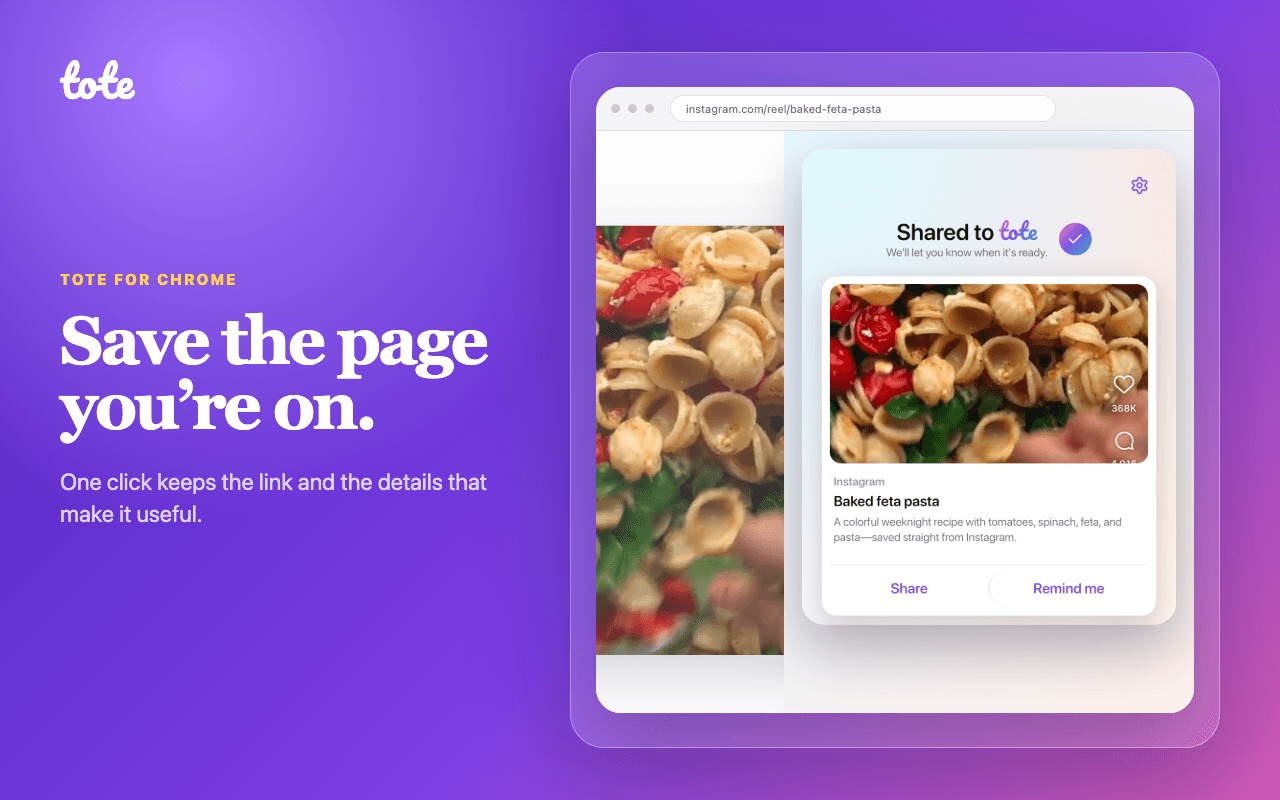
Tote for Google Chrome is a browser extension that saves the page you’re viewing to your Tote account. Open it from Chrome’s toolbar, then share the saved page, add it to a list, or set a reminder without leaving the tab.
Setup
Add Tote to Chrome, pin it, sign in, and save your first page in four steps.
Open Tote in the Chrome Web Store, choose Add to Chrome, then approve the extension.
Choose Chrome’s Extensions button beside the address bar, then select the pin beside Tote so it is always one click away.
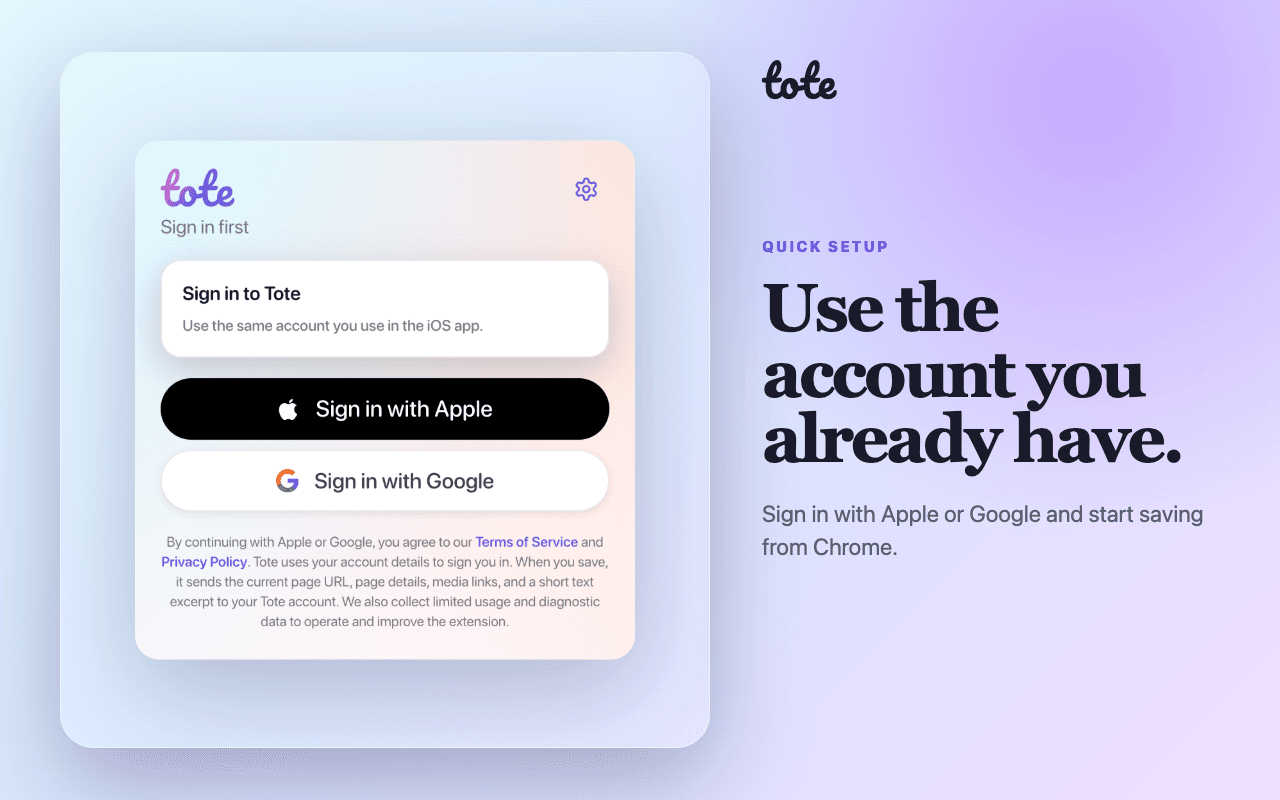
Open Tote and continue with Apple or Google. Use your existing Tote account, or create one during sign-in.
Visit a specific page you want to keep and open Tote. The active page saves immediately, and the finished Tote appears in the popup.
Chrome Web Store installation
Add the extension from the Chrome Web Store, then start saving supported pages.
Your First Save
Use the same Apple or Google account you use with Tote. After sign-in, return to a specific page and open the extension. Tote saves the active page immediately.
Everyday Use
Opening Tote is the save action. Once the page is safely in your account, the popup keeps the most useful follow-up actions together.
Keep the useful context
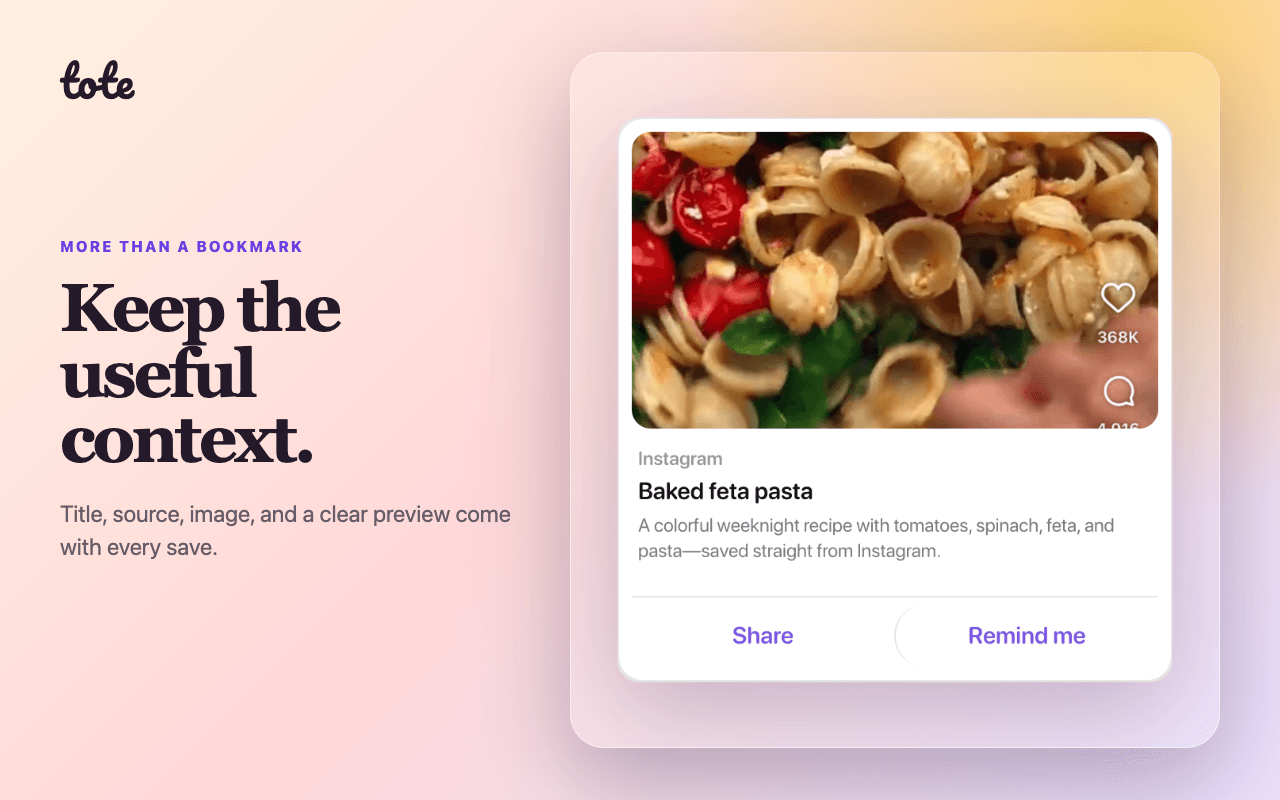
Tote keeps the source link and the page details that make it useful, then processes the save so it is easier to find later in the Tote app.
Stay organized
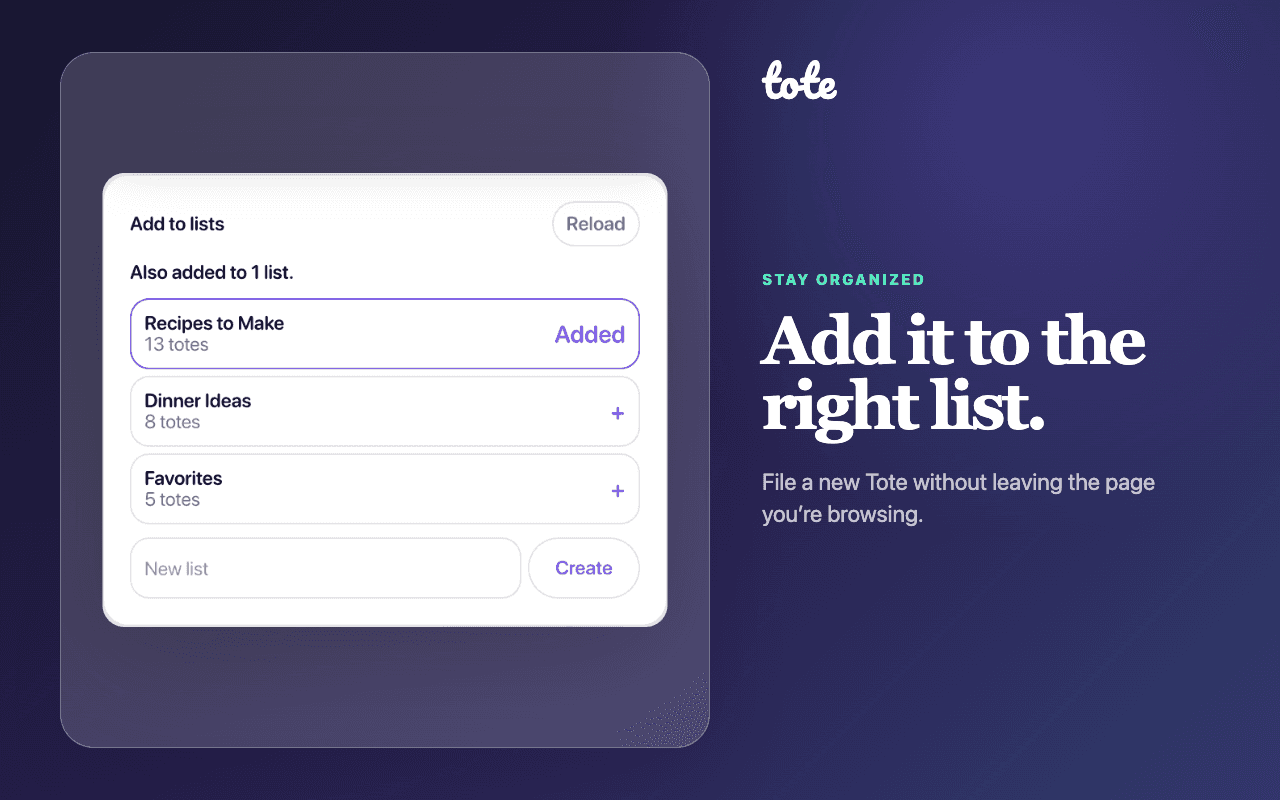
Add the new Tote to an existing list, remove it from a selected list, or create a list without leaving the page you are browsing.
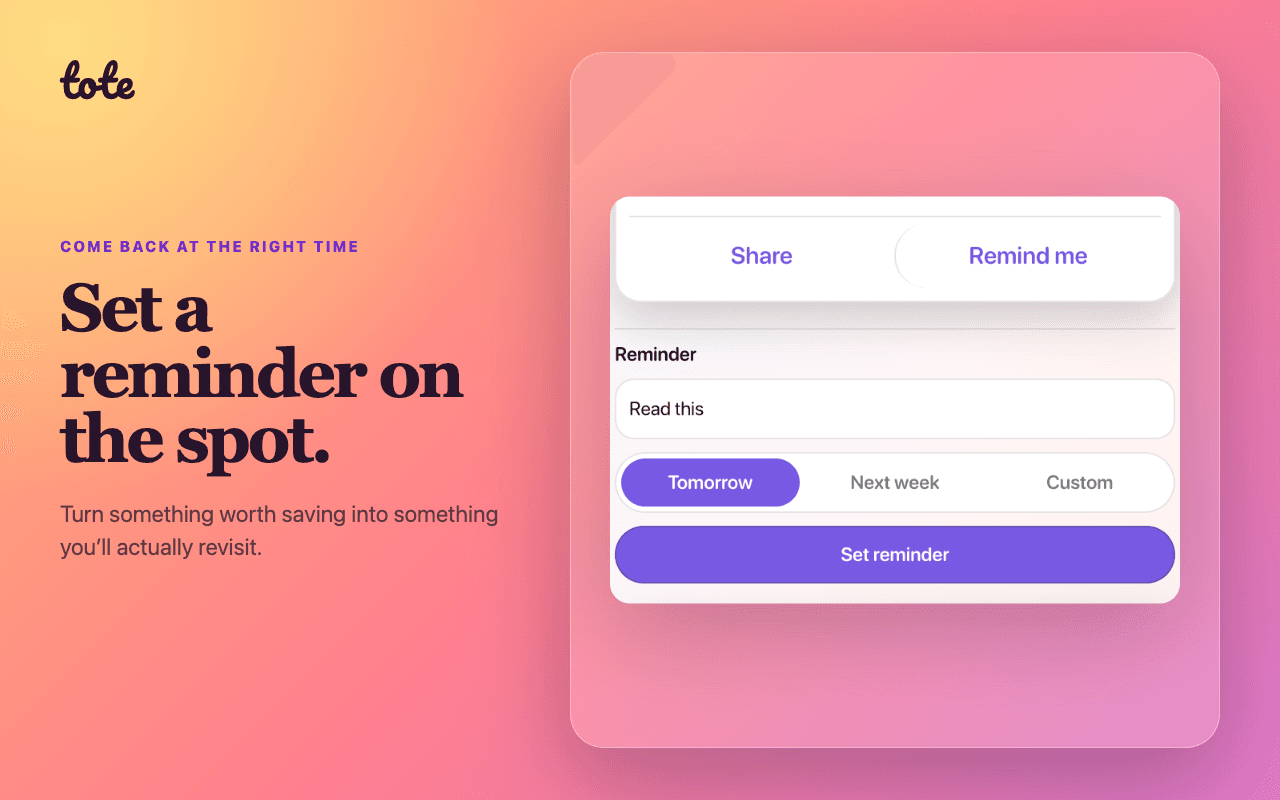
Come back at the right time
Write a short reminder and choose tomorrow, next week, or a custom date while the reason you saved the page is still fresh.
Faster Save
Once you are signed in, right-click a supported page and choose Save page to Tote. Chrome will notify you when the save finishes or needs attention.
Permissions and Privacy
Tote uses Chrome’s active-tab access instead of broad permission to read every site you visit.
Tote reads the active page only when you open the popup or choose Save page to Tote from the right-click menu.
The extension sends the page URL, useful metadata, media links, and a short text excerpt to your Tote account. It does not install a script that watches every page.
Sign-in uses Apple or Google. Usage analytics and diagnostics exclude raw page content, reminder text, account tokens, and provider credentials.
Help
The first things to know about saving behavior, supported pages, the right-click shortcut, and troubleshooting.
Yes. When you are signed in, opening Tote on a supported page starts the save. The popup shows progress, then switches to the saved page with Share, Remind me, and Add to lists actions.
Tote works with regular web pages and specific content such as an article, recipe, product, social post, email, event, file, or message. Open the specific item first. Chrome settings pages, broad feeds, profiles, search results, inboxes, dashboards, and similar collections are not supported.
Yes. After signing in, right-click a supported page and choose Save page to Tote. Chrome shows a notification when the save finishes or needs attention.
You can create an account and save from the extension without the app. Use the Tote app on iPhone or iPad to browse, search, and manage your full library wherever you go.
Make sure you opened a specific item rather than a feed, profile, search page, inbox, or dashboard. Regular Chrome settings pages cannot be captured. If a normal page still fails, check your connection, reload the page, and try Tote again.
Add Tote to Chrome, save a supported page, and keep it with the rest of your Totes.