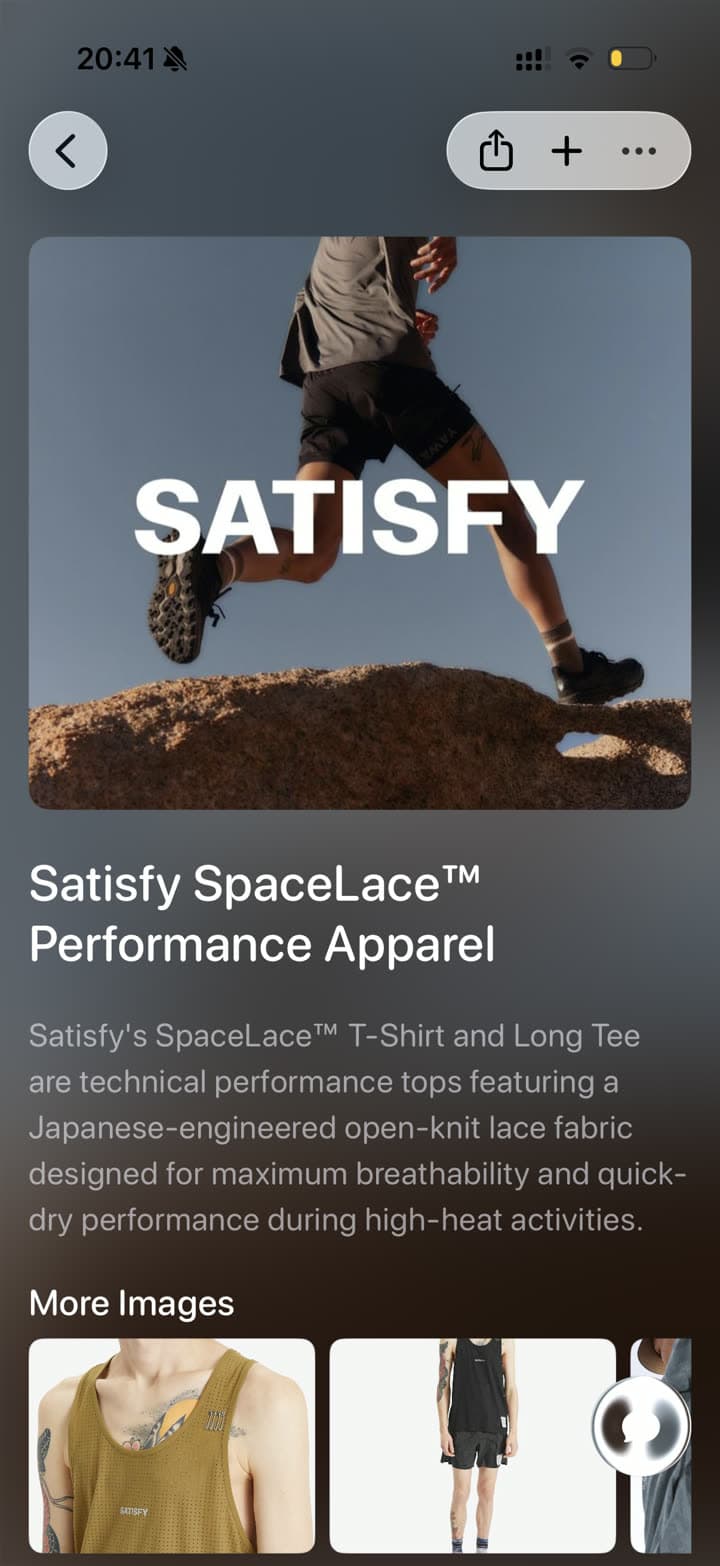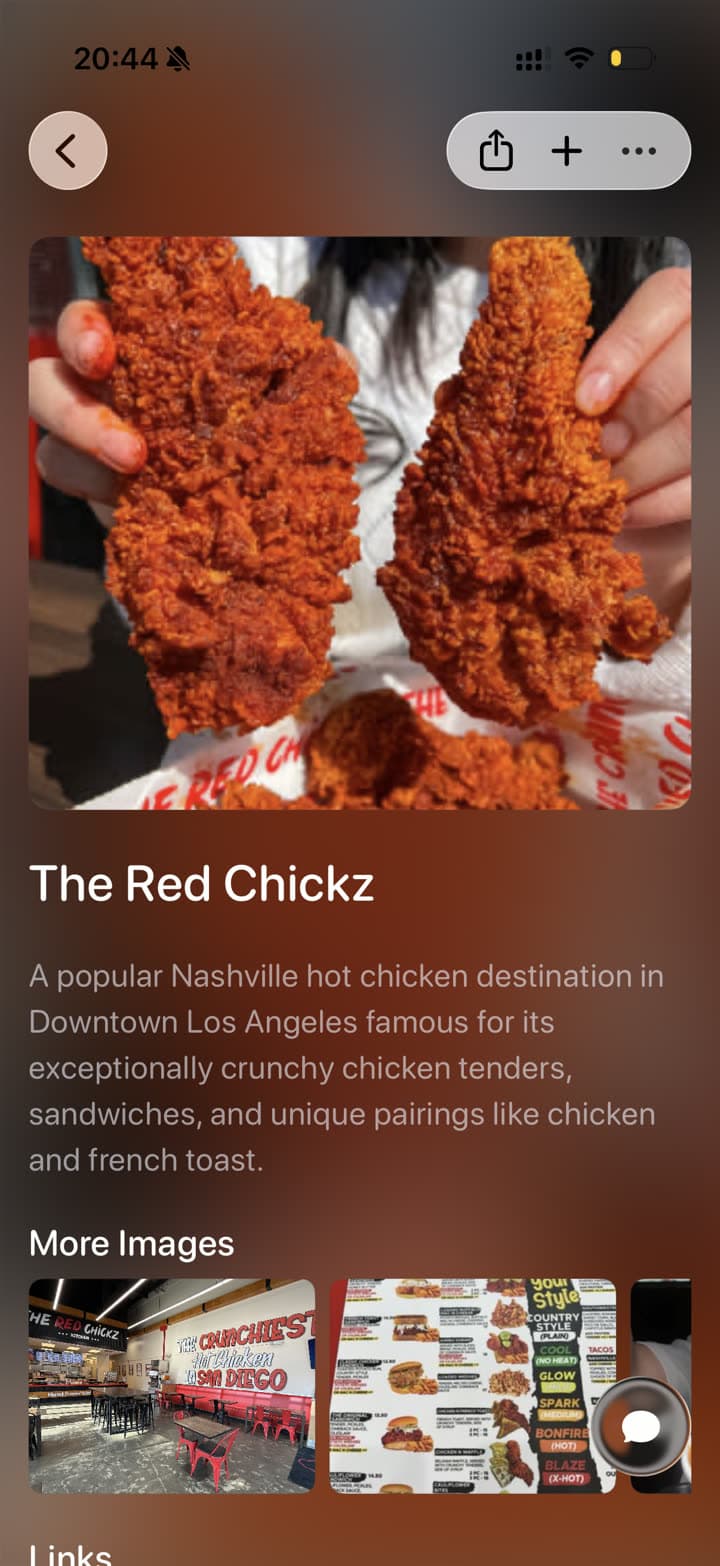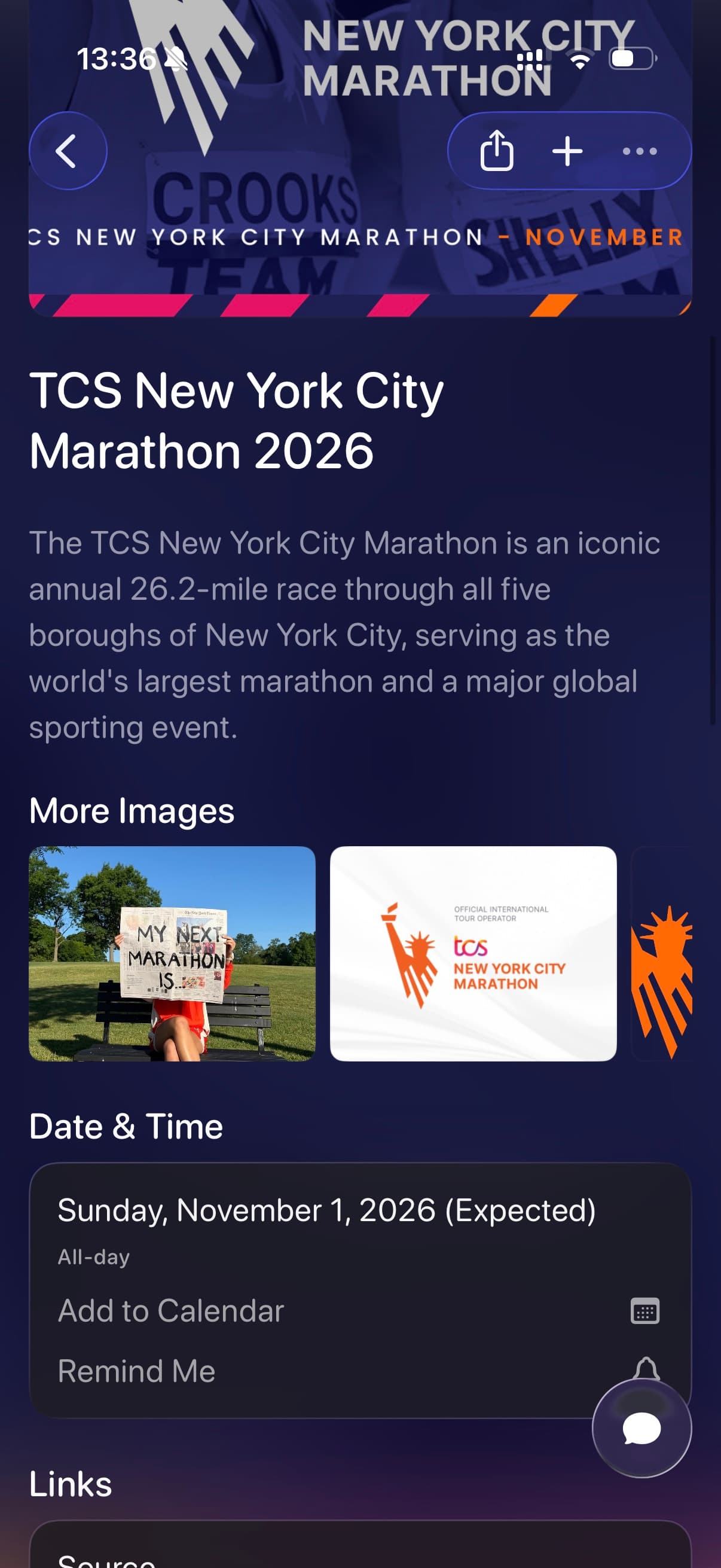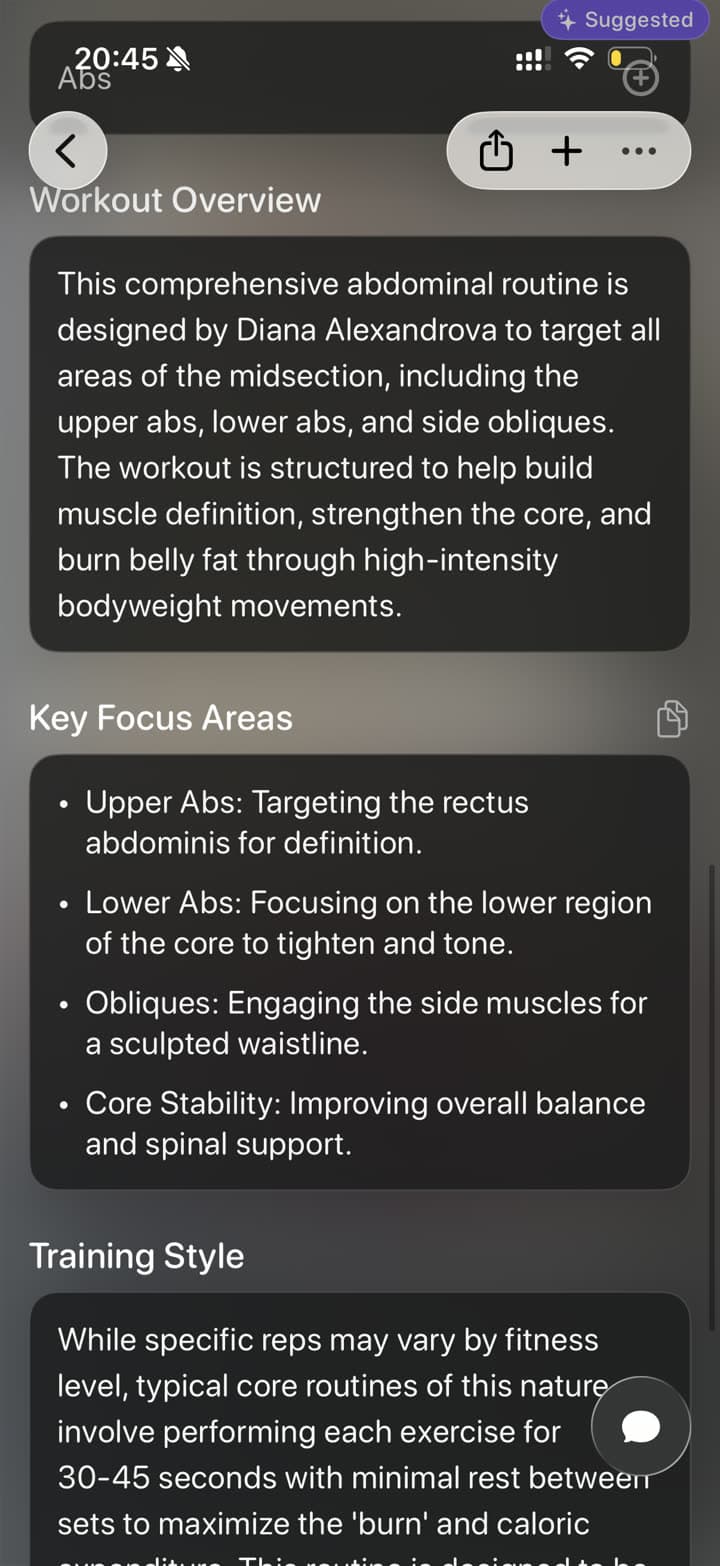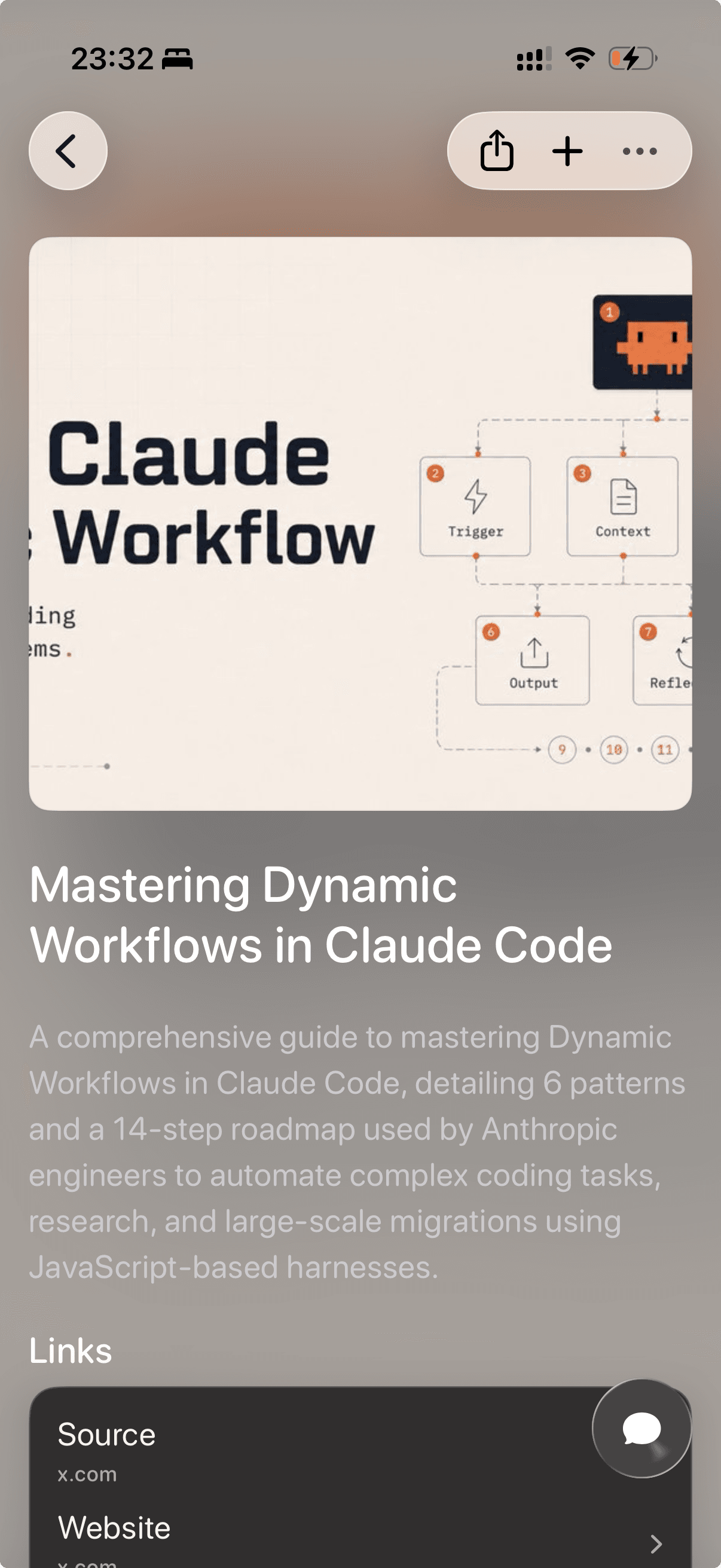
Screenshot organizer

Save and Organize Screenshots

Save screenshots, screen grabs, AI news, and visual ideas to Tote from your iPhone share sheet. Tote turns messy camera roll saves into searchable Totes with titles, summaries, links, lists, and useful details.

Before and after

From Screenshot Pile to Searchable Save

Tote keeps the original visual reference, then adds the context you need when you come back to it later.

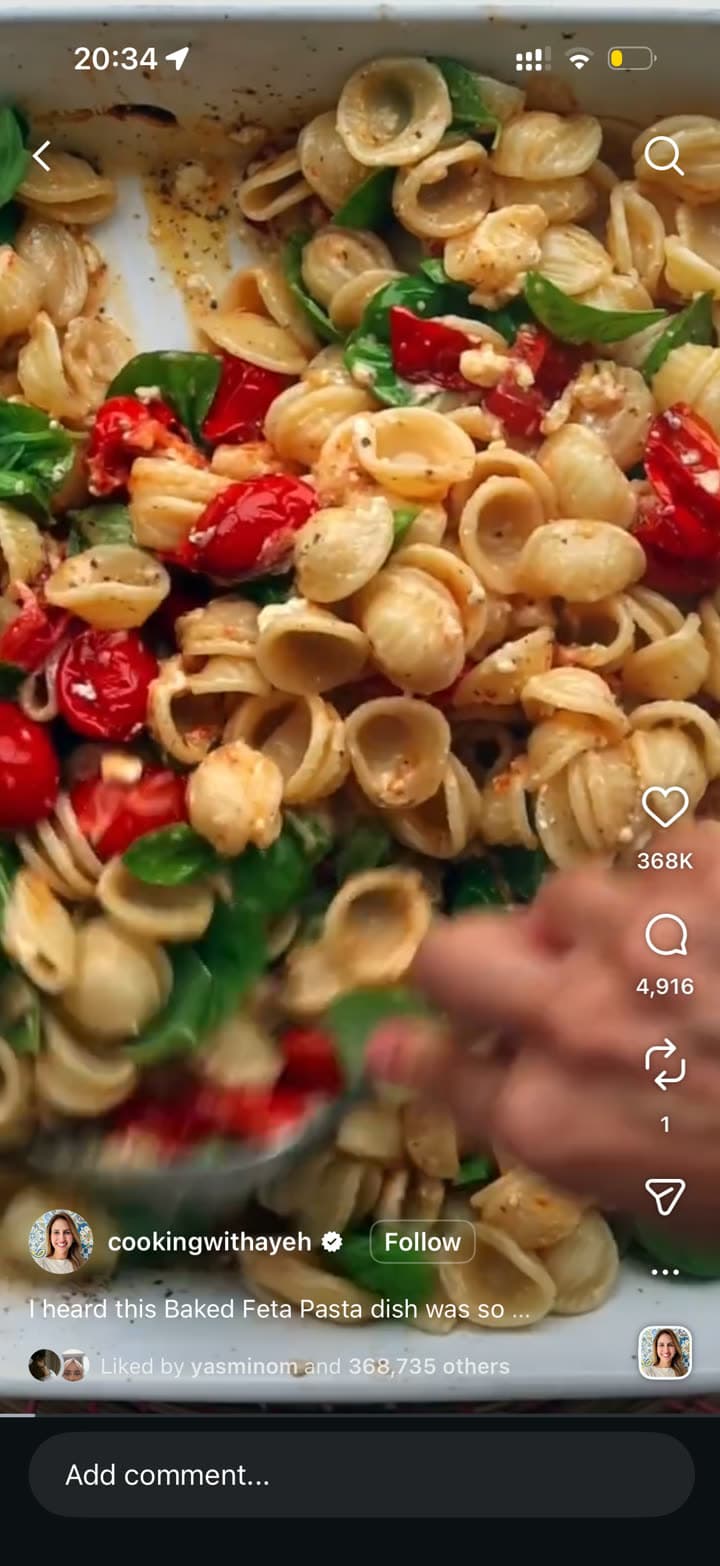
An Instagram recipe video screenshot before it is saved to Tote
Before: camera roll screenshot
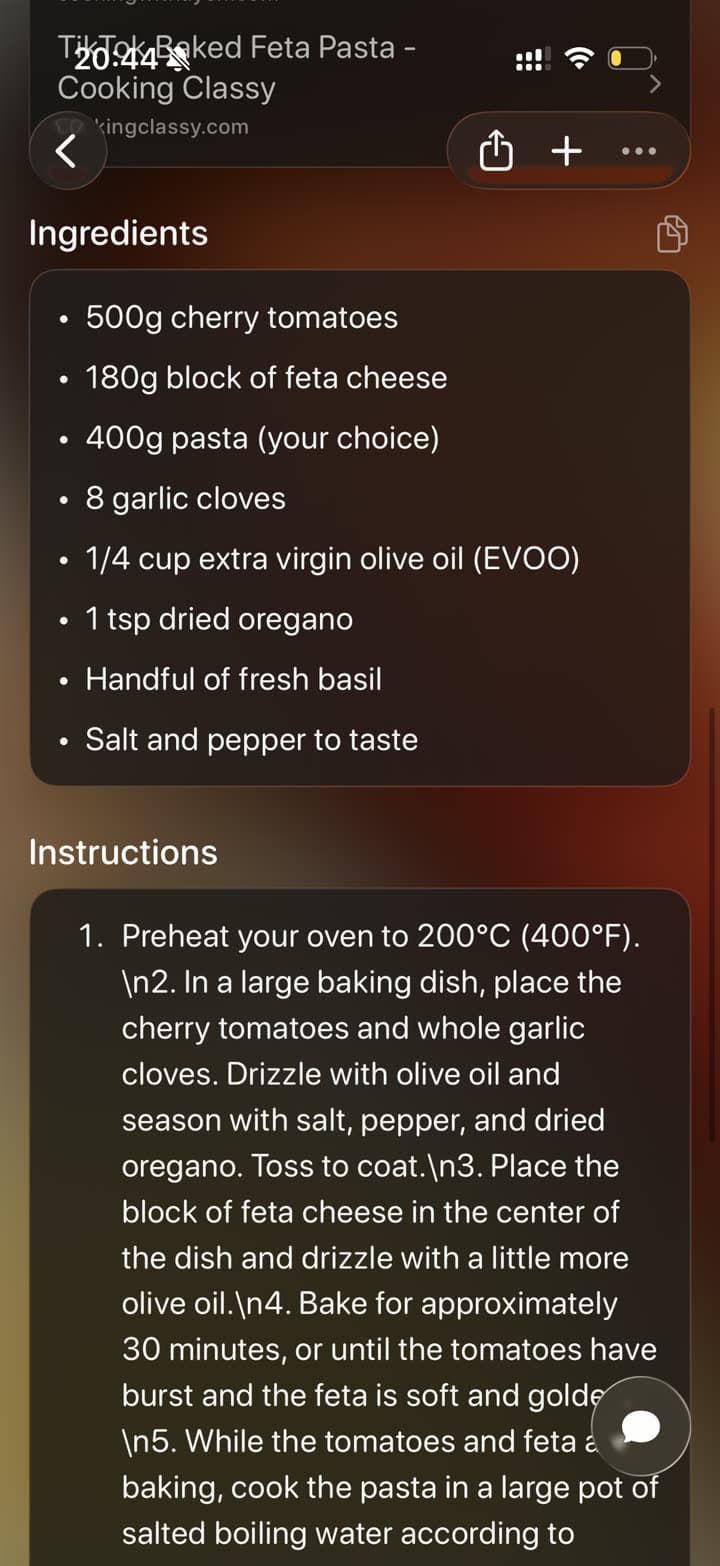
A recipe screenshot organized in Tote with ingredients and instructions
After: searchable Tote

The real problem

Your screenshots are useful for about ten minutes.

Screenshots are the fastest way to save something visual, but they usually lose the source, the context, and the reason you saved them. Recipes, outfits, restaurant ideas, workouts, product finds, and event details all end up mixed with receipts and random photos.

Tote keeps the speed of screenshotting while making the save usable later. Share a screenshot to Tote, then search by what is in it, add it to a list, and keep it beside related links, posts, photos, and notes.

How to Save Screenshots to Tote

  1. Take a screenshot on iPhone, or open an existing screenshot in Photos.
  2. Tap Share and choose Tote from the iPhone share sheet.
  3. Let Tote create a title, summary, useful details, and source context when it is available.
  4. Add the screenshot to a list such as Recipes to Try, Summer Outfits, LA Restaurants, or Workout Ideas.
  5. Search later by the ingredient, place, product, creator, exercise, or detail you remember.
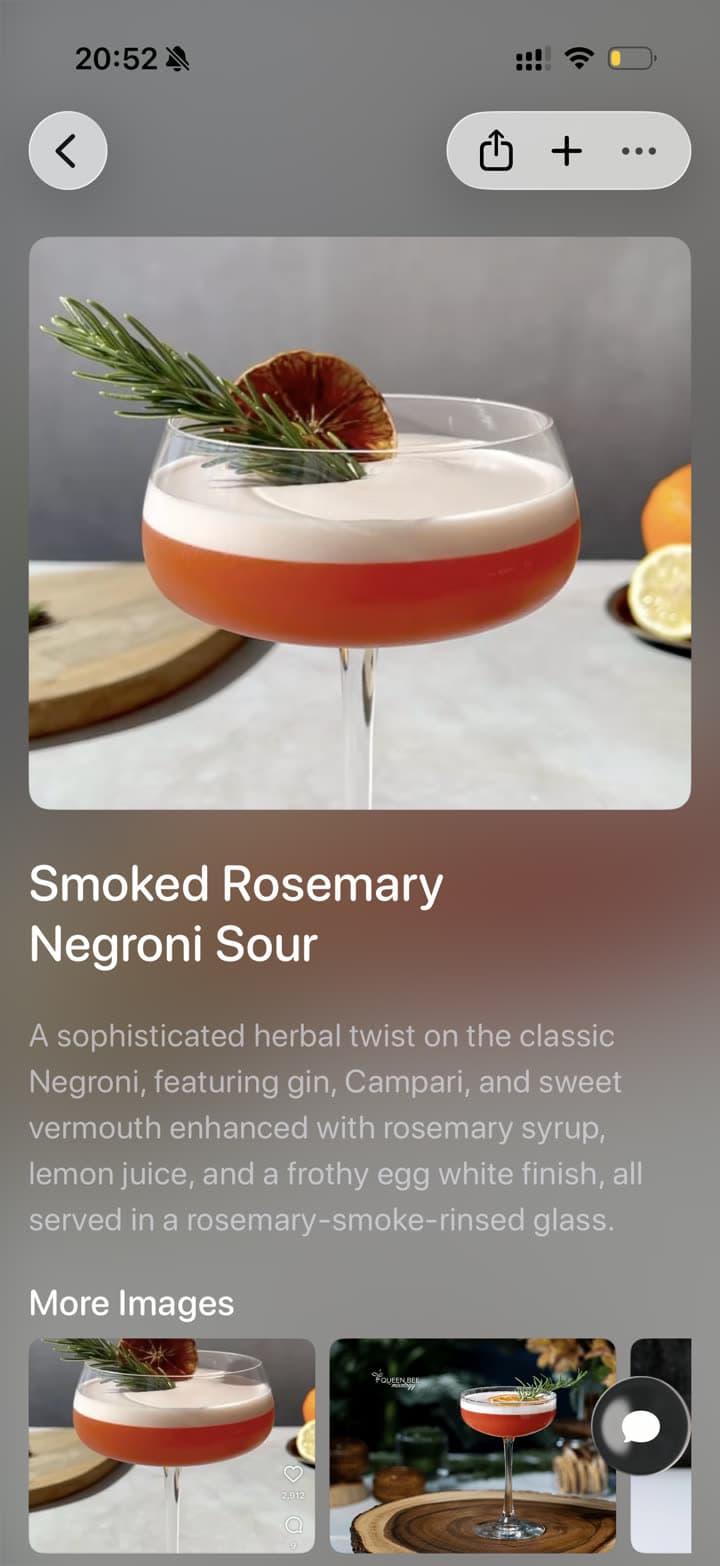
What Tote Captures

  • visible text from the screenshot
  • recipe names, ingredients, instructions, and cooking notes
  • outfit pieces, products, brands, colors, and style ideas
  • restaurants, places, maps, addresses, and source links when available
  • workouts, rep ranges, exercises, and routine details
  • AI news, tool updates, research notes, articles, and technical takeaways

Best Uses

  • recipe screenshots from TikTok, Instagram, Safari, or food blogs
  • fashion screenshots from Instagram posts, Pinterest boards, and shopping pages
  • restaurant screenshots from Reels, Maps, menus, or group chats
  • workout screenshots from videos, plans, notes, and fitness creators
  • AI news screenshots from X, newsletters, blogs, launch notes, and research threads

What to Know

  • A screenshot can only preserve what is visible, so save the original link too when you need the full page.
  • Tote works best when you share screenshots that contain meaningful text, products, places, or visual context.
  • Use Photos for pure photo storage; use Tote for screenshots you need to search, organize, or act on later.

FAQ

Screenshot Saving Questions

What is the best way to organize screenshots on iPhone?

Use Photos for permanent image storage, then share important screenshots to Tote when they need context. Tote creates searchable Totes with titles, summaries, details, and lists so screenshots can be found by what they contain.

Can Tote organize screenshots from different apps together?

Yes. Tote can keep screenshots from Instagram, TikTok, Safari, Pinterest, Maps, Messages, and shopping apps beside links, posts, photos, and notes in the same lists.

Should I save screenshots or links?

Use both when the save matters. The screenshot preserves the visual moment, while the link keeps the source. Tote can organize both together so the save is easier to understand later.

Save Screenshots Before They Disappear Into Photos

Send important screenshots to Tote, then find them later by what they show, where they came from, or the list they belong to.

Download on the App Store