Workout screenshots

Save and Organize Workout Screenshots

Save workout screenshots, fitness routines, rep ranges, exercise videos, and training notes to Tote. Tote helps turn scattered fitness screenshots into searchable routines you can find by muscle group, exercise, creator, or goal.

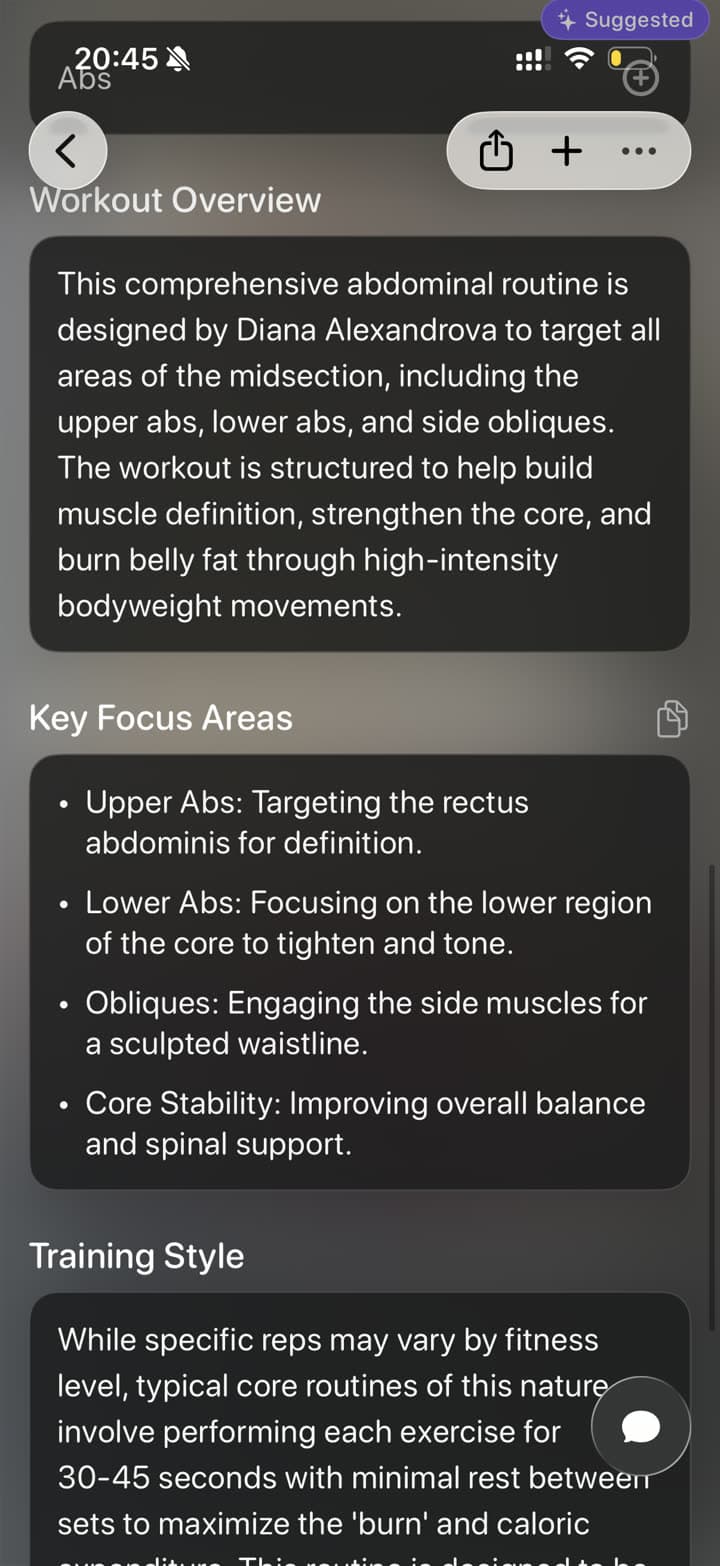
A workout screenshot organized in Tote with routine details
After: routine details

Before and after

From Screenshot Pile to Searchable Save

Tote keeps the original visual reference, then adds the context you need when you come back to it later.

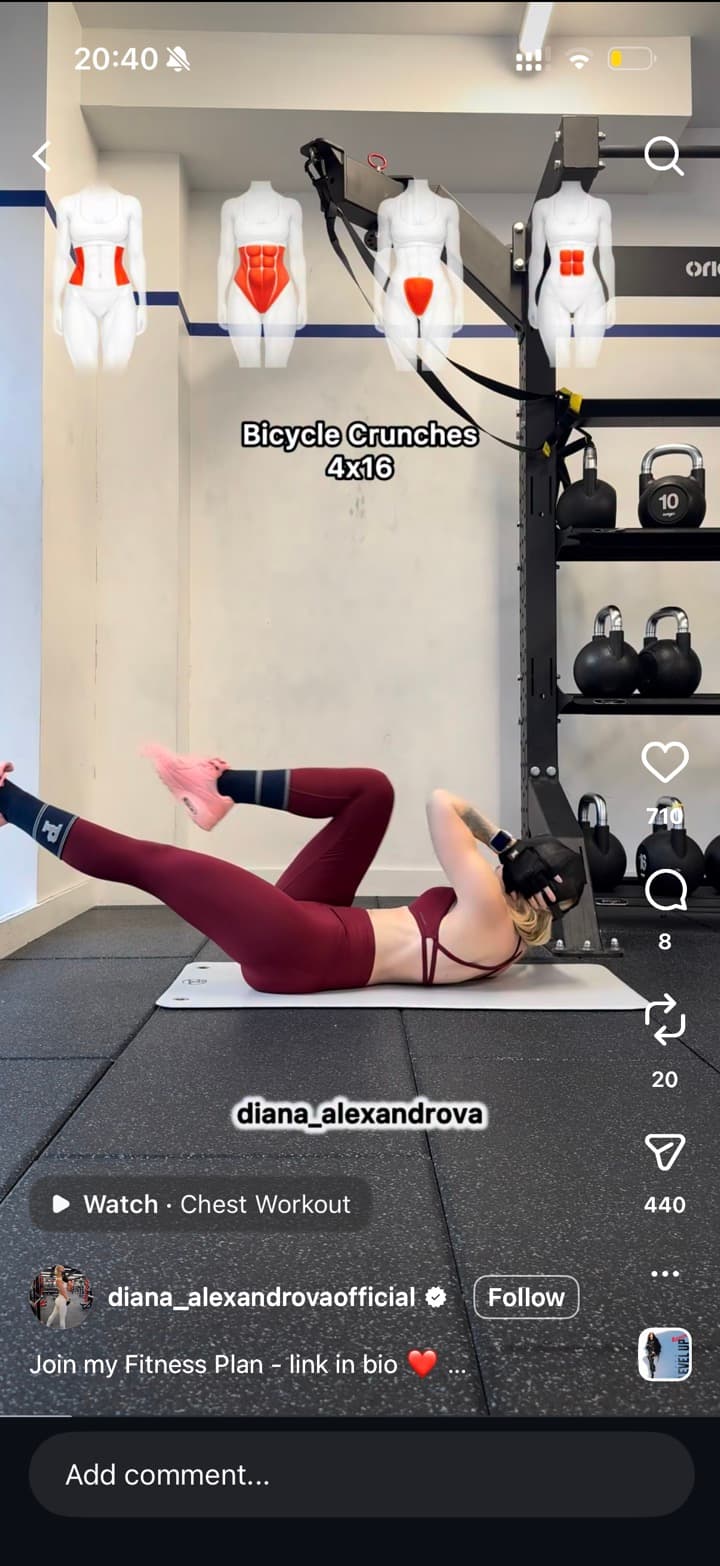
A workout video screenshot before saving
Before: workout screenshot
A workout screenshot organized in Tote with routine details
After: routine details

The real problem

Workout screenshots need structure before you are at the gym.

Fitness screenshots usually capture one exercise, a rep count, or a creator's routine, but the context disappears quickly. You end up scrolling through Photos at the gym trying to remember whether the screenshot was for abs, legs, mobility, or a full plan.

Tote organizes workout screenshots into useful routines with titles, summaries, extracted details, and lists for goals, body parts, trips, or equipment setups.

How to Save Workout Screenshots to Tote

  1. Screenshot the workout video, exercise overlay, routine card, or fitness plan.
  2. Open the screenshot and tap Share, or share the original post directly when a link exists.
  3. Choose Tote and let it capture visible exercises, reps, sets, focus areas, and source context.
  4. Add it to a list such as Abs, Hotel Workouts, Mobility, Leg Day, or No Equipment.
  5. Search later by exercise name, muscle group, rep range, creator, or training goal.
What Tote Captures

  • exercise names, sets, reps, time ranges, and visible routine notes
  • muscle groups, equipment, intensity, and training focus when visible
  • source links from Instagram, TikTok, YouTube, Safari, or fitness pages
  • lists by body part, equipment, location, goal, or phase of training
  • notes about modifications, injuries, and when you plan to use the routine

Best Uses

  • Instagram and TikTok workout videos with text overlays
  • fitness plan screenshots from PDFs, websites, or notes
  • hotel workout ideas saved before a trip
  • routines grouped by body part, equipment, or time available

What to Know

  • Always use your own judgment and professional advice for exercise safety and medical limits.
  • A screenshot may not include full form cues, so save the original video when technique matters.
  • Tote organizes workout ideas; it is not a workout tracker or coaching plan.

FAQ

Screenshot Saving Questions

Can I search workout screenshots by exercise or muscle group?

Yes. Tote can make workout screenshots searchable by visible exercise names, focus areas, equipment, body parts, and notes you add.

Should I save the workout video too?

Yes, when form matters. Save the screenshot for the routine overview and the original video link for movement details, then keep both together in Tote.

Save Screenshots Before They Disappear Into Photos

Send important screenshots to Tote, then find them later by what they show, where they came from, or the list they belong to.

Download on the App Store